
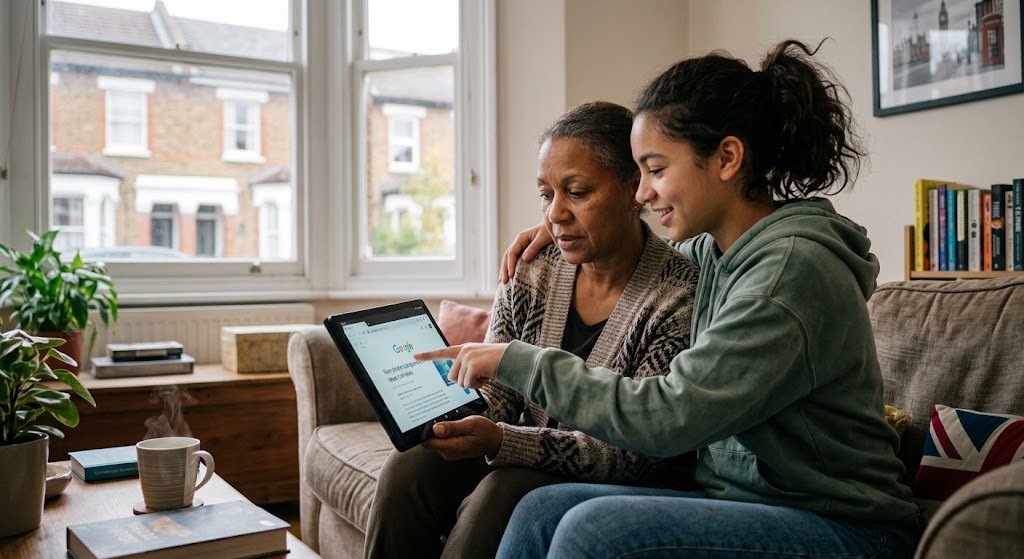
Setting up a phone or tablet properly takes about an hour, and it makes a huge difference. A new device can be a wonderful way to keep in touch, but it can also feel overwhelming at first. So this guide walks you through the most useful settings, to help your relative enjoy their new device with confidence.
Last updated October 2026. Good Sense Guide may earn a small commission if you buy through links on this page, at no extra cost to you.
Before you start setting up a phone or tablet
Set aside time to do this together, ideally at their home so you can connect to their wifi. Explain what you are doing as you go, and let them try things for themselves.
1. Setting up a phone or tablet to be easier to see and hear
- Bigger text. On an iPhone or iPad, go to Settings, then Display and Brightness, then Text Size. On Android, go to Settings, then Display, then Font size.
- Bold text and higher contrast can help too. Look in the same display settings.
- Turn up the ringer and notification volume, and try a few ringtones to find one they can hear clearly.
- Hearing aids. Many modern hearing aids connect directly to phones by Bluetooth. Look under Accessibility, then Hearing Devices.
2. Try a simpler home screen
Both iPhone and Android have a simpler mode with large buttons and only the essential apps. This is one of the most helpful steps when setting up a phone or tablet for an older relative.
- iPhone and iPad: Assistive Access, found in Settings, then Accessibility. It shows a few large buttons for calls, messages, the camera and photos.
- Samsung phones: Easy mode, found in Settings, then Display. It makes icons and text larger and simplifies the layout.
Even without these modes, it helps to move the most used apps to the first screen and remove ones they won’t need.
3. Add contacts with photos
Add family and friends to the contacts list, with a photo for each one. After all, recognising a face is much easier than reading a name. Then mark the most important people as favourites, so they appear at the top.
4. Set up emergency information
- Emergency contacts. Add a couple of trusted people as emergency contacts.
- Medical information. On iPhone, the Medical ID in the Health app can show allergies, medicines and emergency contacts on the lock screen. Android has a similar Emergency information setting.
- Emergency SOS. Both iPhone and Android can call 999 when you press the side button several times. Show your relative how it works, and check it is switched on.
5. Setting up a phone or tablet securely, but simply
- Choose a passcode they will remember, and write it down somewhere safe at home.
- Set up fingerprint or face unlock, which is often easier than typing a code.
- Turn on automatic updates so the device stays protected.
- Silence unknown callers if scam calls are a worry. iPhone and many Android phones can send calls from unknown numbers straight to voicemail.
- Turn on Find My (iPhone) or Find My Device (Android), so you can find a lost phone.
Take a few minutes to talk about scams too. Our guide to how to spot a scam text, call or email is a good one to read together.
6. Install a few useful apps
When setting up a phone or tablet, keep it to a handful of apps they will really use. For example:
- WhatsApp for free messages, photos and video calls with family.
- Their bank’s app, if they want to bank on their phone. Our guide to banking for older people explains the settings that help.
- The NHS App for ordering repeat prescriptions and booking GP appointments.
- BBC iPlayer and BBC Sounds for favourite programmes and radio stations.
7. Practise and write it down
Before you leave, ask them to make a call, send a message and open a photo on their own. Then write short, large print instructions for the things they will do most, and leave them by the device.
A few simple extras can help too. For instance, a stand saves holding a tablet, and a stylus can be easier than fingers. Tablet stands on Amazon | Styluses on Amazon
Setting up a phone or tablet: the bottom line
In short, setting up a phone or tablet with bigger text, a simpler home screen and the right contacts can turn a confusing gadget into a daily lifeline. If you are still choosing a device, see our guides to the best phones for older people and the best tablets for video calls with family.